
WEDOS REST API is still in development. Access and features may change without notice.
This manual covers the basics of WEDOS REST API. For WEDOS API (WAPI) see WAPI – Manual.
In this article, you will learn:
- How to get started and send your first request
- How WEDOS REST API works
- What are the available endpoints
- How to manage API clients
- How to authenticate requests with a token (Bearer token, OAuth2)
- What requests and responses look like, and what the request limit and error codes are
- How list paging works
- How to test a change without applying it (dry run)
- How API request logging works
- How to use WEDOS REST API safely with AI agents
- Frequently asked questions
Getting Started
An API (application programming interface) lets your own scripts and applications work with your WEDOS services without the admin panel. Your program sends a request over the internet to an API address and receives a response with data in JSON format. You need to know these terms:
- API client: Access to the API for one application, system or person. You create it in the WEDOS customer administration panel. Each client has its own client ID, client secret and settings.
- Permission scope: The areas the client can work with:
domains(domains, domain contacts and NSSETs),wdns(DNS) andwgp(WEDOS Protection). You can also limit the client to Read only. - Token (access token, Bearer token): A secret string that proves which client sends the request. You send it with every request in the
Authorization: Bearer <TOKEN>header. - Endpoint: An API address for one type of data or operation, for example
https://api.wedos.com/v2/domainsfor the list of your domains. - HTTP method: What you want to do at the endpoint.
GETreads data,POSTcreates something or runs an operation,PATCHandPUTchange data,DELETEremoves data.
To send your first request, follow these steps:
- Log into the WEDOS customer administration panel ⧉.
- Create an API client with the permission scope you need, for example
domains. See Creating a New Client. - Copy the client secret and store it in a safe place. It is shown only once. See Client Secret.
- Get a token. Copy it from the client detail (see Client’s Bearer Token), or let your application request it with the client ID and client secret (see OAuth2).
- Send your first request. The following example lists your domains. Replace
<TOKEN>with your token.
curl -X GET -H 'Authorization: Bearer <TOKEN>' \
  'https://api.wedos.com/v2/domains'
If the request succeeds, the response contains "code": "1000" and the list of your domains in data (see the example in List Paging). If you get a different code, look it up in HTTP Status and General Codes.
The examples in this manual use curl, a command-line tool for sending HTTP requests. Replace the values in angle brackets, such as <TOKEN>, <CLIENT_ID> and <CLIENT_SECRET>, with your own values, without the angle brackets. Replace the sample domain example.cz with your own domain.
WEDOS REST API Features
WEDOS REST API (version 2) lets you manage your WEDOS services from your own applications and scripts. All communication runs over HTTPS at https://api.wedos.com, and data is sent and returned as JSON.
To gain API access, you need to create an API client with access permissions (read and write, or read only – see the Client Management chapter) to one or multiple endpoints (see Endpoints). Every request needs a token (see Authentication), counts towards the client’s request limit and is logged (see Request Logging).
The rules that apply to all endpoints are described in these chapters:
| Rule | Chapter |
|---|---|
| Authentication (Bearer token, OAuth2) | Authentication |
| Request format and parameters | Request |
Response format and request_id | Response |
| HTTP status codes | HTTP Status |
| Request limit | Request Limit |
| Error codes | General Codes |
| Paging of lists | List Paging |
| Testing a change without applying it | Dry Run |
WEDOS REST API vs. WAPI
WEDOS offers two APIs: the older WAPI and the newer WEDOS REST API. You can compare them using the following table:
| WAPI | WEDOS REST API | |
|---|---|---|
| Authentication | One login and WAPI password for the whole account | A separate API client with its own token for each application or person |
| Access restrictions | A required list of IP addresses for the whole account | Permission scopes, “Read only”, IP addresses and token validity, set per client |
| Format | XML or JSON, a single endpoint, commands in the request body | REST (HTTP methods and URLs), JSON, HTTP status codes reflect the result |
| Coverage | A wide range of commands for WEDOS services | domains, domain contacts, NSSETs, WEDOS DNS, WEDOS Protection |
| Dry run | test parameter | dry_run parameter (see Dry run) |
| Log | One log for the whole account | A log that identifies the API client, with CSV export |
We recommend using:
- WEDOS REST API for new integrations when it covers the operations you need, and wherever you need to separate access for individual people or systems, limit them to read only, or trace who did what (audit, DORA).
- WAPI for operations that WEDOS REST API doesn’t offer yet.
If you want to switch from WAPI to WEDOS REST API, follow these steps:
- In the customer administration panel, create an API client with the required permission scopes for each application or system. See the Client Management chapter for guidance.
- Replace your WAPI command calls with the matching endpoints from the documentation of each API. See the Endpoints chapter.
- Operation result codes (for example
1000OK,3201domain is already registered) are the same as in WAPI, because WEDOS REST API performs the same operations. In addition, there are general REST layer codes (for example2000missing token,2012read-only client), see General Codes. - You can use both APIs side by side during the transition.
Endpoints
WEDOS REST API lets you automate the following areas:
| Area | Base URL | Permission scope | Documentation |
|---|---|---|---|
| Domains – registration, transfers, renewals, AUTH-ID, DNS servers/NSSET, KEYSET (DNSSEC) | /v2/domains | domains | REST API – Domains |
| Domain contacts – creation and management, transfers of .cz contacts | /v2/contacts | domains | REST API – Domain Contacts |
| NSSETs – CZ.NIC NSSET objects | /v2/nssets | domains | REST API – Domain NSSETs |
| DNS – DNS domains and records, zone import, AXFR for secondary DNS | /v2/dns | wdns | REST API – DNS |
| WEDOS Protection – domains, services and members, including origin IP addresses and custom certificates | /v2/wgp | wgp | REST API – WEDOS.protection Domains, REST API – WEDOS.protection Services, REST API – WEDOS.protection Members |
All endpoints are available at https://api.wedos.com.
The /v2/oauth2/token endpoint is also available to request access tokens. You can find more information in the OAuth2 chapter.
Every endpoint supports the example mode: add ?example=1 to the URL (or &example=1 if the URL already contains other parameters). The API returns a sample call (a curl command) for the endpoint and performs nothing. A valid token is required in this mode as well.
Client Management
You set up API access in the customer administration panel, in the HTTP REST API section. Create a separate API client for each application, system or person. For each client you set:
- Permission scopes: Which APIs the client can access,
- Read only: The client can only view information (see below),
- IP address filtering: Allowed and blocked IP addresses the client can or cannot call the API from,
- Token validity: When the access token becomes valid and when it expires.
The client authenticates with an access token in the Authorization: Bearer <TOKEN> header. You can generate the token directly in the customer administration panel, or your application can request it itself using the client ID and client secret (see the Authentication chapter).
Creating a New Client
You can only create a new client in the customer administration panel. Follow these steps:
- Log into the WEDOS customer administration panel ⧉.
- Navigate to HTTP REST API interface in the menu next to the WAPI items, or open https://client.wedos.com/client/http-rest-api.html ⧉.
- Click the New Client button.
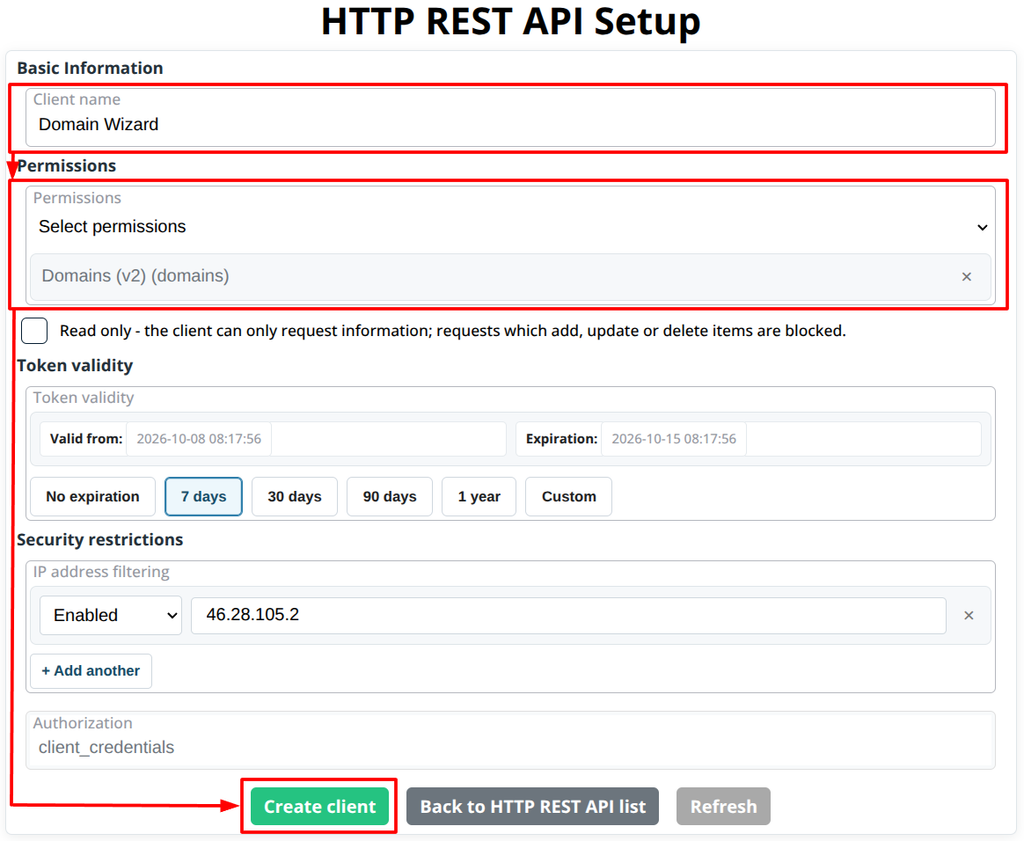
- Enter a Client name (a short name that identifies the client in the list) and pick one or more permission scopes from the Select permissions menu. The available scopes correspond to endpoints. Optionally, enter a Description – a short note on what the client is used for.
- Optionally, perform other settings:
- Check Read only access. The client can then only request information. Requests that add, update or delete items are blocked.
- Under Token validity, choose how long the token stays valid after it is issued: No expiration, 7 days, 30 days, 90 days, 1 year or Custom. The Valid from and Expiration fields show the resulting dates.
- Under Security restrictions, optionally enable IP address filtering and add rules with allowed or blocked IP addresses. The Use my IP address button fills in the address you are currently connected from. Click + Add another for more rules, or × to remove one. When allowed addresses are set, the API accepts requests only from them; requests from blocked addresses are always rejected (code
3001, HTTP 403).
After completing setup, confirm it using the Create client button.
A client with the Read only option enabled can only call requests that view information (the GET method, plus POST /v2/wgp/domains/info). Requests that add, change or delete anything are rejected by the API with code 2012 (HTTP 403), and the rejected request is recorded in the log. You can change this option at any time, and the change applies immediately, including to tokens that have already been issued.
The new client appears in the list with its name, permissions, access type (for example read, write), validity dates and status. You can filter the list by Permissions, Status, Validity and Access.
The Export to CSV (ZIP) button downloads the client list according to the current filters.
Client Secret
Right after you create a client, a Client secret key dialog appears with the message Copy the secret key and save it in a safe place.
- Click Copy next to the secret key.
- Store the secret somewhere safe, such as a password manager or your server’s secret store.
- Click I understand, close.
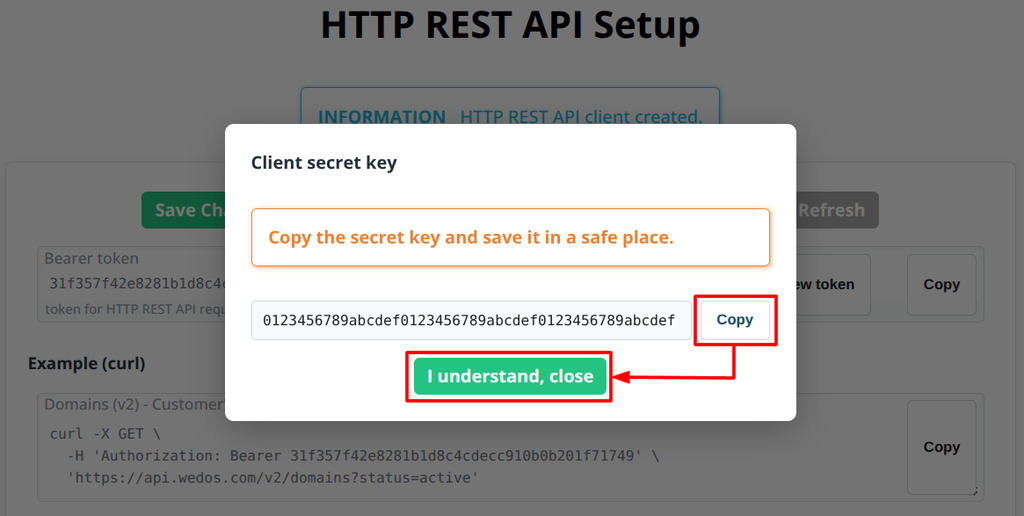
The secret is shown only in this dialog, so save it before you close it. You need it together with the client ID to request tokens via the API (see OAuth2).
Keep the secret confidential. Never commit it to public repositories, and never send it from a browser or mobile app. Use it only on the server side.
New Secret (Rotation)
If you lose the secret, or want to change it regularly, generate a new one with the New secret button in the client detail:
- The original secret stops working immediately.
- All tokens issued to the client so far are invalidated, and a new Bearer token with the same validity period is generated.
- The new secret is shown only once, in the dialog after it is generated. Store it the same way as when you created the client.
- Client settings (name, scopes, IP addresses, validity) and the client ID do not change.
After the rotation, update the secret and the token in all applications that use the client.
Managing an Existing Client
To open a client’s HTTP REST API Setup page, click the edit icon next to its name in the list. You can edit any settings entered during setup, including name and permissions.
You cannot change the client ID. You can generate a new client secret (see New Secret (Rotation)).
While managing an existing client, the following controls are available:
- Save Changes: Save changes to the client’s settings.
- Block / Unblock: Deactivate (block) the client without deleting it, or activate it again. All tokens of a blocked client stop working immediately.
- Delete: Remove the client permanently.
- New secret: Generate a new client secret and invalidate all tokens of the client (see New Secret (Rotation)).
- Export to CSV (ZIP): Download the client settings (without the secret and token).
- Back to HTTP REST API list: Return to the client list.
- Refresh: Reload the page.
Client’s Bearer Token
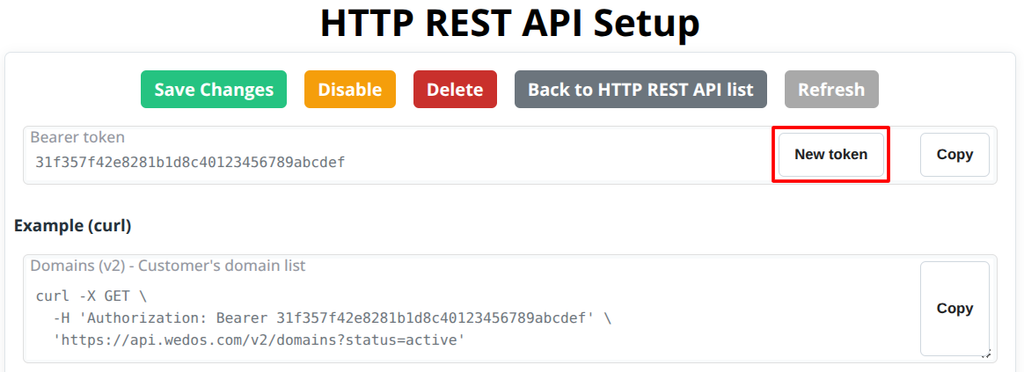
The Bearer token identifies the client when it calls the endpoints. The field shows the client’s current access token. Click Copy to copy it.
To replace the token, click New token. The old token stops working immediately, so update every application that uses it. The client secret does not change.
The Example (curl) section shows a ready-to-use request with the current token for testing purposes.
Recommended Setup for Teams
For multiple people with API access, we recommend the following setup:
- One API client per person or system. The log shows who made each request, and when someone leaves, you block only their client.
- Only the scopes you need. A client for DNS doesn’t need access to domains.
- Read only wherever it’s enough: monitoring, reports, status checks.
- Restrict to IP addresses of the servers or networks that actually call the API.
- Token expiry. Set a validity period and renew the token regularly.
- Keep the client secret on the server side only (never in a browser, a mobile app or a public repository), and change it regularly with the New secret button.
When someone leaves:
- If nobody else knew the client secret, block or delete their API client. All of its tokens stop working immediately, and no new token can be requested for it. Other clients are not affected.
- If someone else keeps using the client (for example a shared system), click New secret. This invalidates the secret and all tokens the leaving person may have known.
- If someone else takes over their work, create a new client for that person.
The New token button alone is not enough: the client secret stays the same, and anyone who knows it can request a new token through the API.
Authentication
Every request to a v2 endpoint must contain an access token in the Authorization header in the form Authorization: Bearer <TOKEN>. The only exception is the token endpoint /v2/oauth2/token (see OAuth2). The token works only for the endpoints in its permission scopes.
You can get a token in two ways:
- Copy it from the client detail in the customer administration panel (see Client’s Bearer Token). It is valid according to the client’s Token validity setting.
- Let your application request it with the client ID and client secret (see OAuth2). It is valid for the number of seconds given in
expires_in.
Example: A request with a token
curl -X GET -H 'Authorization: Bearer <TOKEN>' \
  'https://api.wedos.com/v2/domains'
If the token is valid, the API returns HTTP 200 and code 1000 (see the full response in List Paging). If the token is invalid or expired, or the client is blocked, the API returns HTTP 401 and code 3002:
HTTP/1.1 401 Unauthorized
Content-Type: application/json; charset=UTF-8
WWW-Authenticate: Bearer realm="WEDOS API", error="invalid_token"

{
  "code": "3002",
  "msg": "<text description of the code>",
  "request_id": "f3a9c1e2-7b44-4e21-9c2a-1d6e8a5f3b70"
}
Token authentication errors contain the WWW-Authenticate header according to the OAuth2 standard (RFC 6750), as in the example above. If a scope is missing, the status is 403 and the header contains error="insufficient_scope" and the required scope. A missing Authorization header returns code 2000 (HTTP 401), an invalid header code 2001 (HTTP 400). All codes are listed in General Codes.
OAuth2
Your application can request its own token from POST https://api.wedos.com/v2/oauth2/token using the client ID and client secret (OAuth2 client_credentials grant). The request and the response follow the OAuth2 standard (RFC 6749), so you can use any standard OAuth2 library.
- Client ID: In the client management interface, click Show Client ID to reveal the client ID, then click Copy.
- Client Secret: The secret is shown only after the client is created or after a new secret is generated. See the Client Secret chapter for more information.
Use one of two methods:
- HTTP Basic (recommended): the header
Authorization: Basic <base64(client_id:client_secret)>. curl builds it for you with-u 'client_id:client_secret'. - In the request body: the parameters
client_idandclient_secret.
Send parameters in the body as application/x-www-form-urlencoded, or as JSON with the header Content-Type: application/json.
| Parameter | Required | Description |
|---|---|---|
grant_type | Yes | Always client_credentials |
scope | No | Space-separated permission scopes from among domains (includes domain contacts and NSSET), wdns and wgp. Must be a subset of the client’s scopes. If omitted, the token gets all of the client’s scopes. |
client_id, client_secret | Only without HTTP Basic | Client credentials |
In the following examples, replace <CLIENT_ID> and <CLIENT_SECRET> with the values of your client, and domains with the permission scopes you need.
Example: HTTP Basic (recommended)
curl -X POST -u '<CLIENT_ID>:<CLIENT_SECRET>' \
  -d 'grant_type=client_credentials' \
  -d 'scope=domains' \
  'https://api.wedos.com/v2/oauth2/token'
Example: Credentials in the request body
curl -X POST \
  -d 'grant_type=client_credentials' \
  -d 'client_id=<CLIENT_ID>' \
  -d 'client_secret=<CLIENT_SECRET>' \
  -d 'scope=domains' \
  'https://api.wedos.com/v2/oauth2/token'
Example: JSON
curl -X POST -H 'Content-Type: application/json' \
  -d '{"grant_type":"client_credentials","client_id":"<CLIENT_ID>","client_secret":"<CLIENT_SECRET>","scope":"domains"}' \
  'https://api.wedos.com/v2/oauth2/token'
On success, the API returns HTTP 200 OK and the body contains directly (without the code/msg envelope):
| Field | Description |
|---|---|
access_token | The token, sent as Authorization: Bearer <TOKEN> |
token_type | Token type, always Bearer |
expires_in | Validity in seconds (default 3600, i.e. 1 hour) |
scope | The scopes the token actually received |
HTTP/1.1 200 OK
Content-Type: application/json;charset=UTF-8
Cache-Control: no-store

{
  "access_token": "3f9c2e7a1b...",
  "token_type": "Bearer",
  "expires_in": 3600,
  "scope": "domains"
}
No refresh token is issued for client_credentials. When the token expires, request a new one with the same call.
On error, the body contains error (OAuth2 error code) and error_description.
| HTTP status | error | Cause |
|---|---|---|
| 400 | invalid_request | grant_type or another required value is missing |
| 400 | unsupported_grant_type | Unsupported grant_type value |
| 400 | invalid_scope | The requested scope does not exist or is not assigned to the client |
| 400 / 401 | invalid_client | Invalid client_id or client_secret, or the client is blocked. With HTTP Basic authentication the status is 401 and the response contains the WWW-Authenticate header. |
| 405 | – | A method other than POST (the Allow header lists the allowed methods) |
| 429 | – | Too many requests from your IP address, see below |
HTTP/1.1 401 Unauthorized
Content-Type: application/json;charset=UTF-8
WWW-Authenticate: Basic realm="WEDOS API"

{
  "error": "invalid_client",
  "error_description": "The client credentials are invalid"
}
Abuse protection: From one IP address you can send at most 300 token requests per hour and at most 10 failed client authentications per 10 minutes. When exceeded, the endpoint returns HTTP 429 with the Retry-After header (seconds until the next attempt).
Original address /oauth2/token: https://api.wedos.com/oauth2/token keeps working for backward compatibility. It returns a non-standard response ({"code": 1000, "msg": ..., "data": {"access_token": ...}}, HTTP 200 even on error). Use /v2/oauth2/token for new integrations. Tokens from both addresses are the same and work on all v2 endpoints.
Send the value of access_token in the Authorization header when you call any v2 endpoint covered by the token’s scope (see the example in Authentication).
Strive to maintain the following best practices:
- Store the token and reuse it until it expires (
expires_in). Do not request a new token before every API call. - If a v2 endpoint returns HTTP 401 (invalid or expired token), request a new token and retry the call.
- Request only the scopes your application needs, and use Read only for clients that never change data.
- Restrict each client to known IP addresses where possible.
- Create a separate client for each application, so you can block or delete one without affecting the others.
Requests and Responses
Request
- Parameters for reading (
GET) are passed in the URL (query string), e.g.?page=2&page_limit=100. - Data for
POST,PATCH,PUTandDELETEis sent in the body as JSON with theContent-Type: application/jsonheader. - The maximum body size is 4,096 bytes. Exceptions: zone import (
POST /v2/dns/domains/{domain}/zone-import) 1 MB, custom certificate upload (POST /v2/wgp/services/{service_id}/custom-cert) 64 KB. The maximum URL length is 4,096 bytes. A larger request is rejected with code2004(HTTP 413). - Send only the parameters listed in the documentation of the endpoint. The API currently ignores and records undocumented parameters; in the future it will reject them with code
4001(HTTP 400). A typo in a parameter name (e.g.typinstead oftype,dryruninstead ofdry_run) can therefore mean that a filter or a change is not applied.
Response
All responses (except the token endpoint) are a JSON object of the same shape:
| Field | Description |
|---|---|
code | Return code as a string (e.g. "1000" = OK). Operation codes are the same as in WAPI. |
msg | Text description of the code |
request_id | Request identifier – include it when contacting customer support. You can also find the request in the log by it. |
data | Response data (only if the operation returns any) |
dry_run | true if the request was a dry run |
Example: A request for a domain that does not exist, and the response
curl -X GET -H 'Authorization: Bearer <TOKEN>' \
  'https://api.wedos.com/v2/domains/example.cz'
HTTP/1.1 404 Not Found
Content-Type: application/json; charset=UTF-8
{
"code": "3222",
"msg": "Domain open failed",
"request_id": "f3a9c1e2-7b44-4e21-9c2a-1d6e8a5f3b70"
}Every response (except the token endpoint) contains request_id. Store it together with your own record of the request. It is also recorded in the request log, so you can match your record with the log entry, and customer support can find the request by it.
HTTP Status
The HTTP status reflects the result of the operation, so you can tell success from failure without reading the body. The exact reason is always given by code.
| HTTP status | Meaning | Example codes |
|---|---|---|
| 200 OK | The operation was performed | 1000 |
| 202 Accepted | The request was accepted and will be completed later (asynchronous operation, e.g. domain registration). Check the result by reading the object, e.g. GET /v2/domains/{name}. | 1001 |
| 400 Bad Request | Invalid or incomplete request, invalid parameter | 2100, 2101, 4001, 6002, 6003 |
| 401 Unauthorized | The token is missing, invalid or expired | 2000, 3002 (token error) |
| 402 Payment Required | Insufficient credit or a credit account problem | 3002 (order result, insufficient credit; not a token error), 2283 |
| 403 Forbidden | Insufficient permission – read-only client, missing scope, blocked IP address, object of another account | 2012, 3001, 3223 |
| 404 Not Found | The object or the endpoint does not exist | 3222, 2292, 4000 |
| 405 Method Not Allowed | Unsupported HTTP method; the Allow header lists the allowed methods | 2002 |
| 409 Conflict | The operation cannot be performed in the current state of the object (e.g. the domain is already registered or locked) | 3201, 3305 |
| 413 Content Too Large | The request is too large | 2004 |
| 429 Too Many Requests | The request limit was exceeded; Retry-After header | 4003 |
| 500, 502, 503 | Error on the WEDOS or registry side; you can retry the request later | internal operation errors (40xx, 5xxx), temporary registry unavailability (42xx) |
For token errors and the WWW-Authenticate header, see Authentication. The HTTP status of specific codes is listed in the documentation of each endpoint.
Request Limit
- The default limit is 1,000 requests per hour per API client. Each client has its own limit, shared across all permission scopes (
domains,wdns,wgp). - All requests count towards the limit, including rejected ones and dry runs.
- When the limit is exceeded, the API returns code
4003with HTTP status429 Too Many Requests. TheRetry-Afterheader tells you after how many seconds you can retry the request. - The current limit is shown in the client list in the customer administration panel.
- If the limit isn’t enough, contact customer support via the contact form ⧉. Include the desired limit and a reason why you want to set it. We can raise it individually for your account.
Example: A request after the limit was exceeded, and the response. In this example, you can retry the request after 120 seconds.
curl -X GET -H 'Authorization: Bearer <TOKEN>' \
  'https://api.wedos.com/v2/domains'
HTTP/1.1 429 Too Many Requests
Content-Type: application/json; charset=UTF-8
Retry-After: 120
{
"code": "4003",
"msg": "<text description of the code>",
"request_id": "b7d2e9a4-3c18-4f6b-8e51-0a9c7d2f4e16"
}General Codes
REST layer codes that any endpoint can return:
| Code | HTTP | Meaning |
|---|---|---|
2000 | 401 | The Authorization header (token) is missing |
2001 | 400 | Invalid Authorization header |
2002 | 405 | Unsupported HTTP method |
2004 | 413 | The request is too large (body or URL) |
2012 | 403 | The client is read-only |
3001 | 403 | Access from a blocked IP address |
3002 | 401 / 403 | Invalid or expired token, blocked client (401); token without the required scope (403). As an order result, the same number means insufficient credit (HTTP 402), see below. |
4000 | 404 | The endpoint does not exist |
4001 | 400 | Invalid parameters (Validation failed); data lists the invalid parameters, e.g. {"page": "Must be a positive integer"} |
4003 | 429 | Request limit exceeded |
4005 | 404 | No example is available for the endpoint (example mode) |
6002 | 400 | The endpoint does not support dry run |
6003 | 400 | Invalid value of the dry_run parameter |
Some REST layer code numbers are the same as operation codes but have a different meaning. For example, 3002 means an invalid token (HTTP 401) during token authentication, but insufficient credit (HTTP 402) as an order result. Always read the code together with msg and the HTTP status.
Example: A request with an invalid page number, and the response
curl -X GET -H 'Authorization: Bearer <TOKEN>' \
  'https://api.wedos.com/v2/domains?page=0'
HTTP/1.1 400 Bad Request
Content-Type: application/json; charset=UTF-8
{
"code": "4001",
"msg": "Validation failed",
"request_id": "c4e8a2f1-9b37-4d05-a6e2-5f1b8c3d7a94",
"data": {
"page": "Must be a positive integer"
}
}List Paging
Lists support paging and searching. This applies to the following endpoints:
GET /v2/domains– domains,GET /v2/dns/domains– DNS domains,GET /v2/dns/domains/{domain}/rows– DNS records of a domain,GET /v2/wgp/services– WEDOS Protection services.
| Parameter | Description |
|---|---|
page | Page number, starting from 1. Default 1. |
page_limit | Number of items per page. The default and maximum value is 1000; a higher value is reduced to 1000. |
search | Text to search for. The searched fields, case sensitivity and other filters are described in the documentation of each endpoint. |
pageandpage_limitmust be positive integers. Any other value (0, a negative or decimal number, text) returns code4001(HTTP 400).- The response always contains an array of items and paging information:
| Field | Description |
|---|---|
domain / row / service | Array of items on the current page (the field name is given in the endpoint documentation) |
total | Total number of items matching the filters (across all pages) |
page | Current page |
page_limit | Number of items per page used |
- The number of pages is
total/page_limitrounded up. A page beyond the end of the list returns an empty array.
Example: The second page of domains, 100 items per page
curl -X GET -H 'Authorization: Bearer <TOKEN>' \
  'https://api.wedos.com/v2/domains?page=2&page_limit=100'
{
"code": "1000",
"msg": "OK",
"request_id": "a1b2c3d4",
"data": {
"domain": [
{"name": "domain101.cz", "status": "active", "expiration": "2027-03-03"}
],
"total": 232,
"page": 2,
"page_limit": 100
}
}Dry Run
You can send a request that changes something (POST, PATCH, PUT, DELETE) as a dry run by adding the dry_run=1 parameter to the URL. The API checks permissions and input data and returns the result, but performs nothing: it does not create or change a record, does not send a request to the registry, does not charge anything and does not send an email.
curl -X POST -H 'Authorization: Bearer <TOKEN>' -H 'Content-Type: application/json' \
  --data '{"name":"www","type":"A","rdata":"192.0.2.10","ttl":3600}' \
  'https://api.wedos.com/v2/dns/domains/example.cz/rows?dry_run=1'
{
"code": "1000",
"msg": "OK",
"request_id": "a1b2c3d5",
"dry_run": true
}- The response contains
"dry_run": trueand the same code as a real run:1000means the request would pass, otherwise you get a validation error. Data created only by the real run (record ID, order number, expiration etc.) is not included. - Values:
1ortrueenables it,0orfalsedisables it. Any other value returns code6003(HTTP 400). - For
GETthe parameter is ignored – reading changes nothing. - Check that the response contains
"dry_run": true. If it doesn’t, the request was performed. This can happen with a typo in the parameter name (for exampledryrun), because the API currently ignores undocumented parameters (see Request). - A dry run counts towards the request limit and is recorded in the log (the URL contains
dry_run=1). - Availability checks in the registry (e.g. for domain registration) are performed during a dry run too. The result is valid at the moment of the request and does not guarantee that nobody else registers the domain shortly afterwards.
Endpoints that support dry run:
| API | Endpoints |
|---|---|
| DNS | POST /v2/dns/domains/add, PATCH /v2/dns/domains/{domain}, DELETE /v2/dns/domains/{domain}, POST …/{domain}/commit, …/copy, …/axfr-run, …/axfr-tsig, …/zone-import, POST …/{domain}/rows, PATCH …/rows/{row_id}, DELETE …/rows/{row_id} |
| Domains | POST /v2/domains/create, POST …/{name}/renew, …/{name}/transfer, …/{name}/auth-info/send, PATCH …/{name}/nsset/update, …/{name}/keyset/update |
| Contacts | POST /v2/contacts/create, PATCH /v2/contacts/{cname}, POST …/{cname}/transfer, …/{cname}/auth-info/send |
| NSSETs | POST /v2/nssets, PATCH /v2/nssets/{name}, POST …/{name}/transfer, …/{name}/auth-info/send |
| WEDOS Protection | POST /v2/wgp/domains/create, POST …/domains/{domain}/create/retry, …/domains/{domain}/delete-order, PUT …/domains/{domain}/origin-ips/update, POST /v2/wgp/members, DELETE /v2/wgp/members/{email}, PATCH /v2/wgp/services/{service_id}, DELETE /v2/wgp/services/{service_id}, POST …/services/{service_id}/cache/purge, …/renew, …/custom-cert |
Other endpoints return code 6002 (HTTP 400) for a dry run and the request is not performed. Dry run is not supported yet for POST /v2/wgp/services/{service_id}/template-replicate, POST /v2/wgp/services/{service_id}/cert-type and DELETE /v2/wgp/services/{service_id}/custom-cert.
Request Logging
The HTTP REST API section of the customer administration panel contains a request log. You can filter it by permission scope, API client, status, HTTP method and result (success 2xx, request error 4xx, server error 5xx, error – anything other than 2xx).
To access the log, follow these steps:
- Log into the WEDOS customer administration panel ⧉.
- Navigate to HTTP REST API interface in the menu next to the WAPI items.
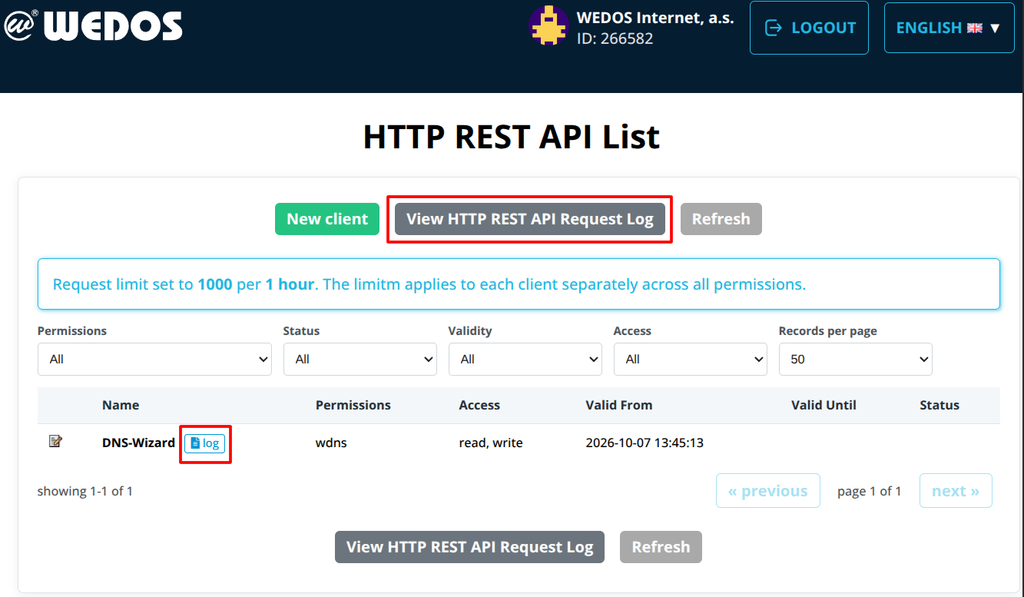
- Click the View HTTP REST API Request Log button.
Each client in the list also has a log link that opens the log filtered to that client’s requests.
For each request, we record:
- date and time, and the IP address the request came from,
- the API client (ID and name) and permission scope,
- HTTP method, URL and the command that was run,
- input data,
- the API response – HTTP status, return code and message, including the response body,
request_id, by which you can find the request.
Requests that the API rejected before the operation started are recorded too (e.g. read-only client, exceeded limit, invalid parameter).
We do not record:
- the access token or the client secret – the
Authorizationheader is not stored in the request log, and the token is masked in WEDOS internal records, - sensitive values in the input data and in the response (passwords, TSIG keys, private keys of certificates and similar) are stored masked.
Other important information:
- Input data is stored up to 1,024 characters, the response up to 4,096 characters. Anything longer is truncated.
- Records are kept for 30 days, after which they are deleted automatically.
- You can download the log and the request detail with the Export to CSV (ZIP) button. The export contains at most 10,000 latest records according to the current filters.
- The log can’t be read through the API yet. It’s available only in the customer administration panel.
Using WEDOS REST API with AI Agents
An AI agent is a program that uses an AI model to decide which API requests to send, for example to manage your DNS records. The agent can make mistakes, so give it only the access it needs, let it test changes first, and check what it did. This chapter shows how to do that with the functions described in this manual.
Give the agent a link to this manual and to the documentation of the endpoints it uses (see Endpoints). The rules that apply to all endpoints are listed in WEDOS REST API Features.
Creating a Separate Client for the Agent
Create a separate API client for each AI agent. You can then limit its access, find its requests in the log and block it without affecting your other applications. Each client also has its own request limit, so an agent that sends too many requests does not use up the limit of your other clients.
- Log into the WEDOS customer administration panel ⧉.
- Navigate to HTTP REST API interface in the menu next to the WAPI items.
- Click the New Client button.
- Enter a Client name that shows it is an AI agent, for example
ai-agent-dns. In Description, write what the agent does. - In the Select permissions menu, choose only the permission scopes the agent needs. For example, an agent that manages DNS records needs only
wdns. - Check Read only if the agent only reads data, for example for reports or checks. Requests that add, change or delete anything are then rejected with code
2012(HTTP 403). - Under Token validity, choose a limited period, for example 7 days or 30 days, instead of No expiration.
- Under Security restrictions, enable IP address filtering and add the IP address of the server or computer where the agent runs. Requests from other addresses are rejected with code
3001(HTTP 403). The Use my IP address button fills in the address you are connected from now, which may be different from the address of the agent. - Click the Create client button.
- Copy the client secret and store it in a safe place (see Client Secret).
Give the agent only the token of this client, or the client ID and client secret if the agent requests tokens itself (see Authentication). You can turn Read only off later, when the agent must make changes. The change applies immediately, including to tokens that have already been issued.
Never give the agent the login to your customer administration panel or the token and secret of another API client. A client can’t be restricted to specific domains or services yet: the agent can work with all services in your account within the client’s permission scopes.
Testing Changes with Dry Run
Tell the agent to follow these rules:
- Send every request that changes something (
POST,PATCH,PUT,DELETE) first with thedry_run=1parameter (see Dry Run). - Check that the response contains
"dry_run": trueand code1000. If the response does not contain"dry_run": true, the request was performed. - Show you the planned change and wait for your approval.
- Send the same request without
dry_runonly after you approve it. - Report the
request_idof every request it sends, so you can find it in the log.
Also tell the agent to:
- Send only the parameters listed in the documentation of the endpoint (see Request).
- Go through all pages of a list with the
pageparameter until it hastotalitems (see List Paging). - After HTTP 429, wait the number of seconds given in the
Retry-Afterheader before it retries the request (see Request Limit). - After HTTP 401, request a new token and retry the request (see OAuth2). If it gets HTTP 403, stop and report the code, because the client does not have the permission.
- After HTTP 202 (code
1001), check the result later by reading the object instead of sending the request again (see HTTP Status).
Some endpoints do not support dry run. For them, the API returns code 6002 (HTTP 400) and performs nothing. The list of supported endpoints is in Dry Run.
Checking What the Agent Did
To check the requests of the agent in the log, follow these steps:
- Log into the WEDOS customer administration panel ⧉.
- Navigate to HTTP REST API interface in the menu next to the WAPI items.
- Click the log link of the agent’s client in the client list. The log opens filtered to the requests of this client.
- To see only rejected or failed requests, filter the log by result, for example error (anything other than 2xx).
- Compare the
request_idvalues that the agent reported with therequest_idin the log.
Dry runs have dry_run=1 in the URL. Records are kept for 30 days. If you need them longer, download them with the Export to CSV (ZIP) button. More information is in Request Logging.
Blocking the Agent or Changing Its Secret
If the agent does something you did not expect, or its token or secret may have leaked, follow these steps:
- Log into the WEDOS customer administration panel ⧉.
- Navigate to HTTP REST API interface in the menu next to the WAPI items.
- Click the edit icon next to the agent’s client.
- Choose what to do:
- Click Block to stop the agent. All tokens of the client stop working immediately. You can activate the client again with Unblock.
- Click New secret if the agent should keep working, but the secret or a token may have leaked. The original secret and all tokens of the client stop working immediately. Then give the agent the new secret or the new token (see New Secret (Rotation)).
The New token button alone is not enough, because anyone who knows the client secret can request a new token. Your other API clients are not affected by any of these steps.
Frequently Asked Questions
How do I test if the API works?
Open the client in the customer administration panel and copy the request from the Example (curl) section. It already contains the current token. You can also send the first request from Getting Started, which lists your domains.
Can I restrict a client only to specific domains or services?
A client can’t be restricted to specific domains or services yet. It has access to all services in your account within its permission scopes (by service types).
How do I try a change without applying it?
Add the dry_run=1 parameter to the URL. The API checks the input data and returns the result, but performs nothing. See Dry Run.
How do I get all items of a long list?
Go through the pages with the page parameter until you have total items. See List Paging.
The API returns HTTP 429. What should I do?
You have exceeded the request limit. Wait the number of seconds given in the Retry-After header and retry the request. If the limit is permanently not enough, contact customer support via the contact form ⧉.
I lost the client secret. Do I have to delete the client?
No. Generate a new secret with the New secret button in the client detail. All existing tokens of the client are invalidated. See Client Secret.
The API returned HTTP 202 (code 1001). Was the operation performed?
The request was accepted and will be completed asynchronously (e.g. registration in the domain registry). Check the result later by reading the object, e.g. GET /v2/domains/{name}.
How do I use specific endpoints?
Make sure your client has the permission scope of the endpoint. Then follow the links to the documentation in the Endpoints chapter.
How do I find out what an AI agent did in my account?
Open the request log filtered to the agent’s API client with the log link in the client list. This works best when the agent has its own client. See Using WEDOS REST API with AI Agents.