
In this article, you will learn:
Custom Error Pages
Once enabled in the WGP admin panel, Custom Error Pages can replace the default WEDOS Error Page. These include HTTP status code error pages returned by either the web or proxy server, as well as Challenge pages, such as Captcha and Proof of Work.
The following table summarizes where the error originates and which error page is used by default:
| HTTP Code or Page Type… | … from the Web Server | … from the WGP Proxy |
|---|---|---|
| Status 400 – 499 | Retrieved from web server | – |
| Error 500 – 511 (Except 503) | WEDOS Error Page | WEDOS Error Page |
| Error 503 | See below | See below |
| Error 525 | – | WEDOS Error Page |
| Challenge (Proof of Work, Captcha) | – | WEDOS Challenge Page |
There are 3 possibilities for 503 errors:
- WGP proxy is not responding. The system displays the WEDOS Error Page.
- The web server is not reachable by WGP. The system displays the WEDOS Error Page.
- The web server is reachable by WGP and is returning it’s own 503. The system displays the web server’s error page.
You can replace any specific WEDOS Error or Challenge Page with your own. You can also upload web server status pages to the WEDOS.protection service to increase efficiency.
B2B Custom Status Pages
Whenever a B2B partner sets up custom error pages for their main domain (as defined in the partnership contract), these pages apply instead of the WEDOS defaults, unless different settings are applied directly to a WGP service in that B2B partner’s account.
For example, if a B2B partner defines their own error page for the 503 error on the proxy server, each of their customers will see that page, rather than the default WEDOS one. The only way to override this is to set up a custom 503 error page for the proxy server for a specific service in that B2B paretner’s account.
Custom Pages Setup
Custom Pages can only be set up on a service with the Expert plan. To upgrade your service, follow the guide Protection – Subscription Plan.
To enable custom error pages, follow these steps:
- Log into the WEDOS.global dashboard ⧉.
- Choose the domain to set custom pages for.
- In the left menu, select Custom Pages.
- Click the Enable HTTP Error Pages button.

Once enabled, any proxy or web server error message can be customized:
- In the HTTP Error Pages panel, click the Create Page button.
- Select the HTTP Code or page type to customize and hit the Submit button.
- In the table of custom HTTP Error Pages, click the (eye) icon to edit the custom page HTML code.
- Once you’re done editing, click the Save Changes button.
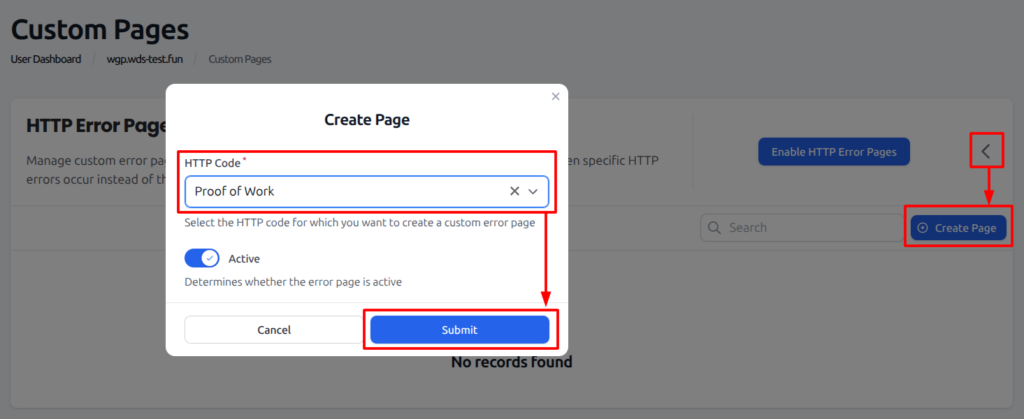
HTTP Codes 502, 503 and 504 have separate instances for Web Server and WGP Proxy. Make sure you are editing the correct one.
Widget: Proof of Work
Proof of Work pages require pasting the widget code:
<cap-widget data-cap-api-endpoint="https://atp-ac09.wedos.global/5006f7890f/"></cap-widget>
<div id="status">Verifying…</div>
<div id="cap-container"></div>
Widget: Diagnostics
It is recommended to include diagnostic information with each error. To obtain diagnostic information about an error, insert any of the following strings. The system will automatically attempt to replace them with relevant values:
| Diagnostic | Code string |
|---|---|
| Visitor IP address | 1.1.1.1 |
| WEDOS.global node identifier | NODE_HOST_PLACEHOLDER |
| Request ID | 123456789012345678901234567890 |
| Request timestamp | GMTTIME_PLACEHOLDER |
| Visitor User Agent | USER_AGENT_PLACEHOLDER |
| Request target | REQUEST_PLACEHOLDER |
FAQ
What is the benefit of setting custom 404 sites on WEDOS.global, rather than my own server?
Such errors load from the proxy rather than the target web server, reducing load from potentionally malicious requests.