
This article deals with the WAF (Web Application Firewall) and Combo Rules features of WEDOS Protection. For single-dimension rules see Filters and GeoIP.
In this article, you will learn:
- How WEDOS Protection WAF and Combo Rules work
- How to set up:
- Combo Rules use cases and examples
- Frequently Asked Questions
WAF and Combo Rules
The WEDOS Protection Web Application Firewall (WAF) inspects incoming HTTP/HTTPS requests at the proxy layer and blocks those that match known attack patterns (SQL injection, XSS, RCE, path traversal, and other OWASP-class threats) before they reach your origin server. The WAF works alongside Filters and GeoIP, and the AI Mode protection that runs across the entire WEDOS Protection network.
Combo Rules sit on top of the WAF and let you define advanced, combined L3–L7 rules per domain. Each rule matches multiple conditions at once (IP/ASN, Geo, Path, User-Agent, JA4, JA4H, HTTP method, HTTP version), and the first matching rule wins. Combo Rules are useful when a single filter is not specific enough — for example, when you want to allow a known crawler ASN only on a specific path, or block a particular TLS fingerprint coming from a single country.
The WAF and Combo Rules complement, but do not replace, Filters and GeoIP. The Filters and GeoIP rules are meant for single-dimension protection, while Combo Rules are for more complex scenarios. Also, AI Mode continues to run in parallel and cannot be disabled.
WAF and Combo Rules Setup
For the Start and Advanced subsription plans, WAF runs in AI Mode only and Combo Rules are not available. To have access to WAF Mode selection and Combo Rules upgrade to the Expert plan.
To access the settings, follow these steps:
- Log into the WEDOS Global admin panel ⧉.
- Select a domain (or template) to set up.
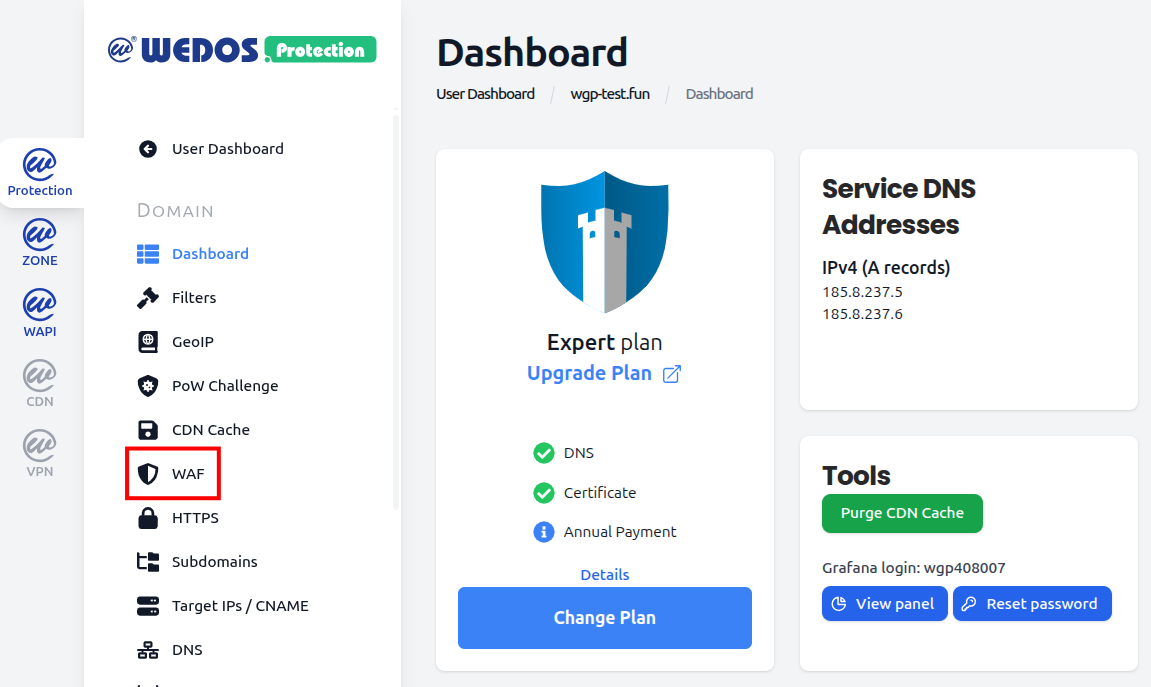
- In the left menu, click WAF.
WAF Mode
The WAF Mode selector controls the ruleset used by the Web Application Firewall for the selected domain. Three modes are available:
- Advanced WAF (full ruleset) — default: Runs the complete WAF ruleset, including core protections and extended signatures for application-layer attacks. Recommended for most websites and applications.
- Basic WAF (core rules only): Runs only the core ruleset. Useful when the full ruleset causes false positives on a legitimate but unusual application, and you need a smaller, more conservative set of signatures.
- Disabled: Turns off WAF rule evaluation entirely. AI Mode, Filters, GeoIP, and Combo Rules remain active.

Setting WAF Mode to Disabled only turns off the WAF rules. It does not disable AI Mode, Filters, GeoIP, or Combo Rules. Only disable the WAF if you have a specific reason — for example, while troubleshooting false positives.
Combo Rules
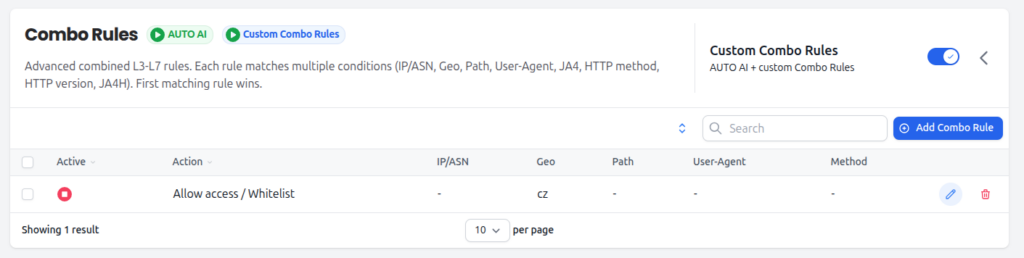
Combo Rules are advanced combined L3–L7 rules. Each rule matches on multiple conditions, and the first matching rule wins. Order rules from most specific to most general — for example, allow rules for known good crawlers first, then a catch-all block at the bottom.
Combo Rules run alongside AUTO AI, which always evaluates traffic in the background. AUTO AI cannot be disabled.
Actions
When a Combo Rule matches, one of the following actions is applied:
- Allow access / Whitelist: Bypass all protection layers and deliver the request directly to the origin server. Use only for trusted, well-identified traffic (e.g. a verified internal monitoring system).
- CAPTCHA verification (Proof of Work): Serve a Proof of Work / bot challenge before allowing the request through.
- Block with error page (HTTP 456): Block the request and return a customizable error page with HTTP status 456.
- Block silently (drop traffic): Silently discard the request. The client receives no response. Useful against attack traffic where you do not want to confirm the request reached a server.
Matching fields
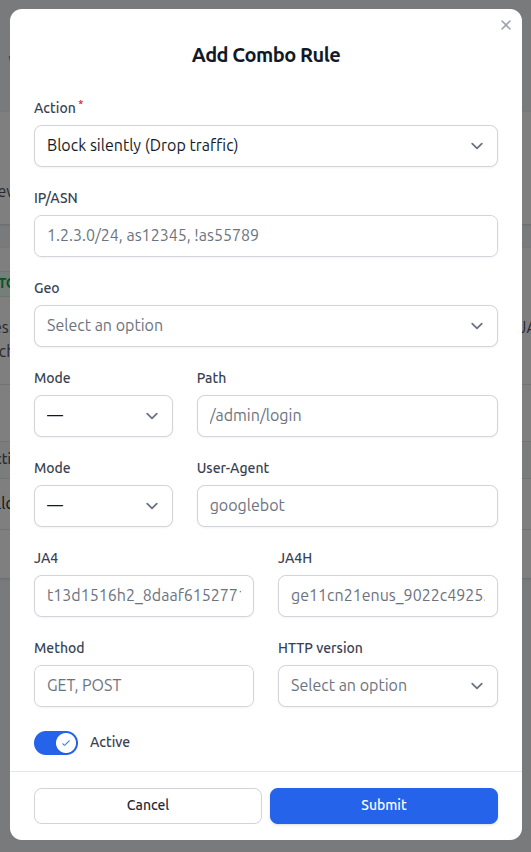
Each Combo Rule can match on up to nine fields. Any field can be left empty to act as a wildcard, and any field can be negated (using a ! prefix where supported, such as !as55789). For a rule to fire, all active fields must match.
- IP/ASN: Source IP address, CIDR range, or Autonomous System Number. Multiple values can be entered as a comma-separated list (e.g.
1.2.3.0/24, as12345, !as55789). - Geo: Country or continent code, as used by GeoIP.
- Path: URL path on the domain (e.g.
/admin/login). Supports exact and prefix matching depending on the selected Mode. - User-Agent: Value of the
User-AgentHTTP header (e.g.googlebot). Supports exact and substring matching depending on the selected Mode. - JA4: JA4 TLS fingerprint of the client. Useful for matching a specific client TLS stack independently of its self-declared User-Agent.
- JA4H: JA4H HTTP fingerprint of the client. Useful for catching bots that mimic a browser at the TLS layer but expose themselves at the HTTP layer.
- Method: One or more HTTP methods, comma-separated (e.g.
GET, POST). - HTTP version: HTTP protocol version of the request (e.g. HTTP/1.1, HTTP/2, HTTP/3).
Add a Combo Rule
To add a new Combo Rule, follow these steps:
- Make sure the Custom Combo Rules toggle is enabled.
- Click the Add Combo Rule button.
- Select the Action to apply when the rule matches.
- Fill in only the matching fields you need. Leave the rest empty to act as wildcards.
- Make sure the Active toggle is on, then click Submit.
Each rule in the list can be edited or deleted from the actions column. Use the Active indicator to enable or disable individual rules without deleting them.
Combo Rules are evaluated in order, and the first matching rule wins. Place more specific rules (e.g. allow a specific ASN on a specific path) above more general ones (e.g. block an entire country).
Combo Rules Use Cases and Examples
Combo Rules are most useful when no single filter is specific enough. Some common scenarios:
Whitelist a known crawler by ASN
Goal: Allow Googlebot traffic to pass without challenges, even if other rules would otherwise block it.
Setup: Action Allow / Whitelist, IP/ASN as15169, User-Agent googlebot. Place this rule above any blocking rules.
Restrict an endpoint to POST-only
Goal: An API endpoint should only accept POST requests; everything else is unwanted.
Setup: Action Block with error page (HTTP 456), Path /api/submit, Method GET, PUT, DELETE, PATCH, HEAD, OPTIONS. Requests using POST will not match and continue normally.
Challenge a country on a sensitive path
Goal: Allow normal browsing from a country but challenge anything trying to access the admin panel.
Setup: Action CAPTCHA verification (Proof of Work), Geo cz, Path /admin/login.
Silently drop a known attack fingerprint
Goal: Drop traffic matching a JA4 fingerprint observed in a previous attack, without giving the attacker any feedback.
Setup: Action Block silently (drop traffic), JA4 t13d1516h2_8daaf6152771_....
FAQ
What happens if I disable the WAF?
Only the WAF ruleset is turned off. AI Mode, Filters, GeoIP, and Combo Rules continue to run. Your domain is still protected, but without signature-based application-layer rules — so we only recommend disabling the WAF temporarily, for example while troubleshooting a false positive.
When should I use Basic WAF instead of Advanced WAF?
Use Basic WAF only if the Advanced ruleset causes false positives on a legitimate application that you cannot adjust at the source. The Basic ruleset is more conservative and applies only the core rules. For most websites and APIs, the default Advanced WAF is the right choice.
How does rule ordering work?
Combo Rules are evaluated from top to bottom, and the first matching rule wins. Place specific rules (such as allow rules for known good crawlers or trusted IPs) at the top of the list, and broader rules (such as country-wide blocks or catch-all denies) below them.
Do I need to fill in every field in a Combo Rule?
No. Any field left empty acts as a wildcard. A rule with only Geo = cz set matches all traffic from Czechia, regardless of IP, path, user agent, method, or version. For a rule to fire, all filled-in fields must match.
Can I negate a value in a Combo Rule?
Yes. Fields that accept comma-separated lists (such as IP/ASN) support negation with a ! prefix — for example, as12345, !as55789 matches AS12345 but explicitly excludes AS55789.
How are Combo Rules different from Filters?
Filters match on a single dimension at a time (one IP list, one ASN list, one User-Agent list, and so on). Combo Rules combine multiple dimensions into a single rule, so you can express conditions like “only this ASN, only on this path, only with this method” that a single filter cannot.
Can AUTO AI be turned off for Combo Rules?
No. AUTO AI is always enabled and runs in parallel with your Custom Combo Rules. You can add your own rules in custom mode, but the AI cannot be disabled.