
This article addresses root domain (SLD) upstream targets for the WEDOS Protection system. As long as subdomains run on the same server as the corresponding domain, you do not need to enter their target IPs separately. For instructions on how to set up subdomain upstream targets, follow this guide Protection – Subdomains.
In this article, you will learn:
- How to set target IPs /CNAME in WEDOS Protection
- Troubleshooting common issues
- Frequently asked questions
Target IPs / CNAME
The WEDOS Protection proxy server uses target IPs / CNAME to access the web server. The initial setup is usually done automatically. If you need to check or change it, follow these steps:
- Log into the WEDOS Global administration panel ⧉.
- On the homepage, select the domain for which you want to review or change upstream targets.
- In the left menu, click Target IPs / CNAME.
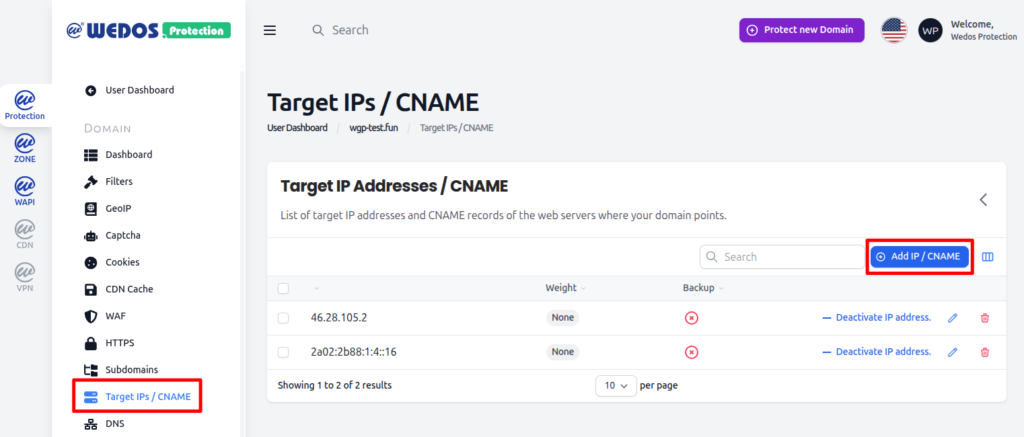
In this interface, you can click:
- the Add IP / CNAME button in the list header to add a new web server address;
- if necessary, increase the target weight (priority) or make it a backup;
- the or to Deactivate or Activate the IP address or CNAME;
- the pencil icon on the right to edit the target, its weight parameter, or make it a backup;
- the bin icon on the right to delete the IP address.
The proxy server reqiuires at least one IP address /CNAME directed to the domain’s web server to function properly.
Troubleshooting Common Issues
Common problems with setting up target IPs / CNAME in WEDOS Global include:
Unknown Web Server IP
Issue: I don’t know the IP address of the web server, so I don’t know if it is set correctly in Global.
Solution: If you are hosting your web with us, you can find out its IP address by following the instructions for setting up type A records ⧉, where you also use it. For another provider, follow their instructions or contact their support.
Logging Client IPs
Issue: We need to log the IP addresses of clients accessing our web server, but the system logs WEDOS Global server IPs instead.
Cause: We forward real client IP addresses, but your web server is probably not processing them correctly.
Solution: Use this link ⧉ (.json, click here ⧉ for .txt) to find unicast ranges that WEDOS Global uses to communicate with target web servers. The list updates daily.
- If you use NGINX on the target server, set the
set_real_ip_fromparameter with the above ranges. For more information, check out NGINX docs ⧉. - For Apache, first make sure that
mod_remoteipis active (for more information, see Apache docs ⧉). Then, configure the above IPs:
RemoteIPHeader X-Forwarded-For
RemoteIPTrustedProxy # add IP or range from file
- For LiteSpeed (inc. OpenLiteSpeed), go to WebAdmin Configuration Server General. Next, set the Use Client IP in Header to Trusted IP Only. Add the IPs and ranges from the above file into the Trusted IP List. For more information, see LiteSpeed Wiki ⧉ or OpenLiteSpeed docs ⧉.
Now your server should be able to work with real IPs.
FAQ
When I installed the WGP WordPress plugin, I only got four IPv4 addresses and no IPv6. Is that right?
The plugin contains only minimal settings. The service is fully functional with IPv4 addresses, but if you can set up IPv6 as well, do it. You can find their values according to the instructions in the DNS Domain Records chapter, even for domains added via the plugin.