
In this article, you will learn:
- How HTTPS works in WEDOS Protection
- Pass-Through Mode and its options
- HSTS (HTTP Strict Transport Security)
- Let’s Encrypt and Custom Certificates
- How to configure HTTPS settings
- Frequently asked questions
HTTPS in WEDOS Protection
HTTPS is a fundamental requirement for modern websites — it encrypts data transmitted between visitors and the server, protecting it from interception and tampering. WEDOS Protection provides built-in HTTPS support, allowing secure traffic handling at the proxy level while maintaining high performance and strong security controls.
By default, WEDOS Protection acts as a secure reverse proxy. The encrypted TLS connection from the visitor is terminated at the WGP edge, where the request is temporarily decrypted so it can be inspected for attacks. After all security checks are applied, the request is encrypted again and securely forwarded to the origin server.
This means that for full application-layer (L7) protection to be effective, WGP must hold a valid certificate for your domain. WEDOS Protection can manage this automatically via Let’s Encrypt, or you can upload your own custom certificate on the Expert plan and higher.
Pass-Through Mode
Pass-Through Mode defines how HTTPS traffic is processed and protected for the domain — from full application-layer protection (default), to network-only protection, to no inspection at all. There are three available options:
- Full Protection (L3/L4 and L7) — default. Pass-through is disabled and WGP protects your domain on all layers. TLS is terminated at the WGP edge, traffic is inspected by both network-level and application-level filters (including WAF), and then re-encrypted before being forwarded to the origin.
- Network Protection (L3/L4 only). L7 protection is disabled and only network-level rules and filters are applied to your domain. WGP does not terminate TLS, so no application-layer inspection is possible. Useful when the origin must remain end-to-end encrypted but you still want DDoS and network-level filtering.
- Pass-through (no inspection/protection). No protection, inspection, or logging is applied. All requests are forwarded to the origin server untouched. Use only when encryption must remain strictly end-to-end and you handle protection at the origin yourself.
HSTS
HSTS (HTTP Strict Transport Security) is a browser-enforced security policy that instructs visitors’ browsers to always connect to your website over HTTPS — never plain HTTP. When HSTS is enabled in WEDOS Protection, WGP adds a Strict-Transport-Security response header to all HTTPS responses for the domain.
When HSTS is enabled:
- Browsers automatically rewrite
http://requests tohttps://before any traffic leaves the device. - Downgrade and SSL-stripping attacks are prevented.
- Accidental access over unsecured HTTP is blocked.
This helps protect users from man-in-the-middle attacks and ensures consistent encrypted communication for all visitors.
HSTS should be enabled only when HTTPS is fully configured and working correctly for the domain and all its subdomains. Once a browser stores the HSTS policy, it cannot be bypassed until the policy expires, so misconfiguration may temporarily lock users out.
Let’s Encrypt and Custom Certificates
WEDOS Protection supports two types of SSL/TLS certificates: automatically managed Let’s Encrypt certificates (default), and custom certificates uploaded by the customer.
HTTPS with Let’s Encrypt
By default, WEDOS Protection automatically issues and renews Let’s Encrypt certificates for your domain. This option:
- Requires no manual certificate management.
- Provides trusted, widely accepted certificates.
- Automatically renews certificates before expiration.
This is the recommended option for most users. Renewal is handled by WGP using DNS-01 validation, so no manual intervention is required as long as the domain remains under WGP’s DNS delegation.
HTTPS with a Custom Certificate
Customers on the Expert plan and higher can upload and manage their own SSL/TLS certificates. Custom certificates are commonly used when:
- An organization-issued certificate is required.
- Extended Validation (EV) or a specific Certificate Authority is needed.
- An existing certificate infrastructure must be reused.
Once uploaded, the custom certificate is used by WEDOS Protection to secure HTTPS traffic for the selected domain. Renewals must be handled manually by the customer before the certificate expires.
HTTPS Setup
To configure HTTPS settings, follow these steps:
- Log into the WEDOS Global admin panel ⧉.
- Select a domain (or template) to set up.
- In the left menu, click HTTPS.
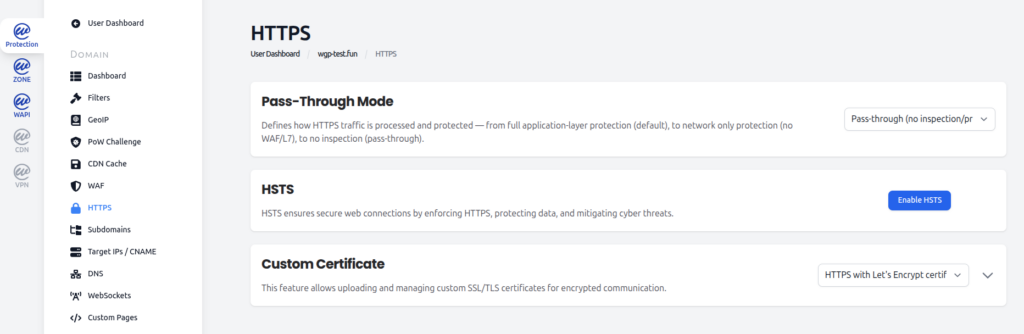
Set Pass-Through Mode
In the Pass-Through Mode section, use the dropdown to select one of the three available modes. For a detailed description of each option, see the Pass-Through Mode chapter above.
The default mode is Full Protection (L3/L4 and L7). We recommend leaving this enabled for all production traffic that does not require strictly end-to-end encryption.
Enable HSTS
In the HSTS section, click Enable HSTS to turn on HSTS for the domain. WGP will begin adding the Strict-Transport-Security header to all HTTPS responses. To turn HSTS off again, click the same button (which will now read Disable HSTS).
Before enabling HSTS, make sure that:
- HTTPS works correctly for the domain and all subdomains in scope.
- A valid certificate is in place (Let’s Encrypt or custom).
- All internal links and resources load over HTTPS (no mixed content).
Manage the Certificate
In the Custom Certificate section, use the dropdown to choose between HTTPS with Let’s Encrypt certificate (default) and HTTPS with custom certificate.
With Let’s Encrypt selected, no further action is required — WGP issues and renews the certificate automatically.
With custom certificate selected, expand the section to upload the certificate files. You will need to provide:
- The certificate file (in PEM format).
- The private key file.
- The intermediate certificate chain, if not bundled with the certificate.
Custom certificate uploads are available on the Expert plan and higher. Remember that custom certificates do not auto-renew — replace the certificate before it expires to avoid TLS errors for your visitors.
FAQ
Does my origin server need its own SSL certificate when using WEDOS Protection?
In the default Full Protection (L3/L4 and L7) mode, WGP terminates TLS at the edge using its own certificate. The origin can still use HTTPS for the backend connection (recommended for security), but visitors only see the WGP certificate. In Network Protection (L3/L4 only) and Pass-through modes, the origin must have its own valid certificate, since the TLS handshake happens directly with the origin.
Is HTTPS Pass-Through the same as disabling WGP?
No. In Pass-through (no inspection/protection) mode, traffic still flows through the WGP network — it just is not inspected, filtered, or logged. You retain the routing and availability of the Anycast network, but you lose application-layer and network-layer protection. To restore protection, switch back to Full Protection or Network Protection.
How does WGP renew Let’s Encrypt certificates automatically?
WGP uses DNS-01 validation to renew Let’s Encrypt certificates. A temporary TXT record is placed on _acme-challenge.yourdomain.com, Let’s Encrypt verifies it, and the renewed certificate is installed on the WGP edge. This happens automatically and requires no manual action as long as your domain remains delegated to WGP’s DNS.
Will enabling HSTS break my site?
Only if HTTPS is not fully working when HSTS is enabled. Once browsers store the HSTS policy, they refuse HTTP fallback for the duration of the policy. Before enabling HSTS, confirm that the site loads correctly over HTTPS on the main domain and any subdomains visitors use, and that there are no mixed-content warnings.