
In this article, you will learn:
- How Emergency Mode works
- How to change the active mode
- When to use each mode
- Frequently asked questions
Emergency Mode
Emergency Mode controls how WEDOS Protection processes incoming traffic for a domain at a global level. It determines whether protection rules are enforced as normal, logged only, or replaced with stricter incident-response behavior, all from a single dropdown.
Changing Protection Mode applies to the entire domain configuration. It does not delete or override individual filters or Combo Rules. Instead, it changes how those rules behave at the proxy.
Available Modes
WEDOS Protection currently supports the following five modes:
| Mode | Behavior |
|---|---|
| Normal (Deactivate) | No emergency mode is active. The domain runs in full Normal protection with all filters, rate limits, and CMS rules enforcing. Recommended for production. |
| Under Attack, Soft | Hardened challenge gate combined with stricter rate limits. Designed for an active L7 attack where you want to filter harder while keeping the site available to legitimate users. |
| Bypass | Protection rules are bypassed and traffic is forwarded to the origin with reduced filtering. Useful when investigating a suspected false positive in your protection rules. |
| Log Only | Filters and rules evaluate but do not affect the traffic. Actions become “log” entries that can be reviewed in Grafana. Use to validate rules or audit existing protection. |
| Full Drop | All inbound TCP connections are silently dropped at the proxy edge. Visitors see a connection timeout. Last-resort isolation. |
You can find more information on the modes in the Mode Manual chapter.
Emergency Mode Setup
To change the active Emergency Mode for a domain, follow these steps:
- Log into the WEDOS Global admin panel ⧉.
- Select a domain (or template) to set up.
- Open the dropdown labeled Emergency Mode at the top of the domain dashboard and select the mode you want to activate.
- Confirm the change in the dialog window.
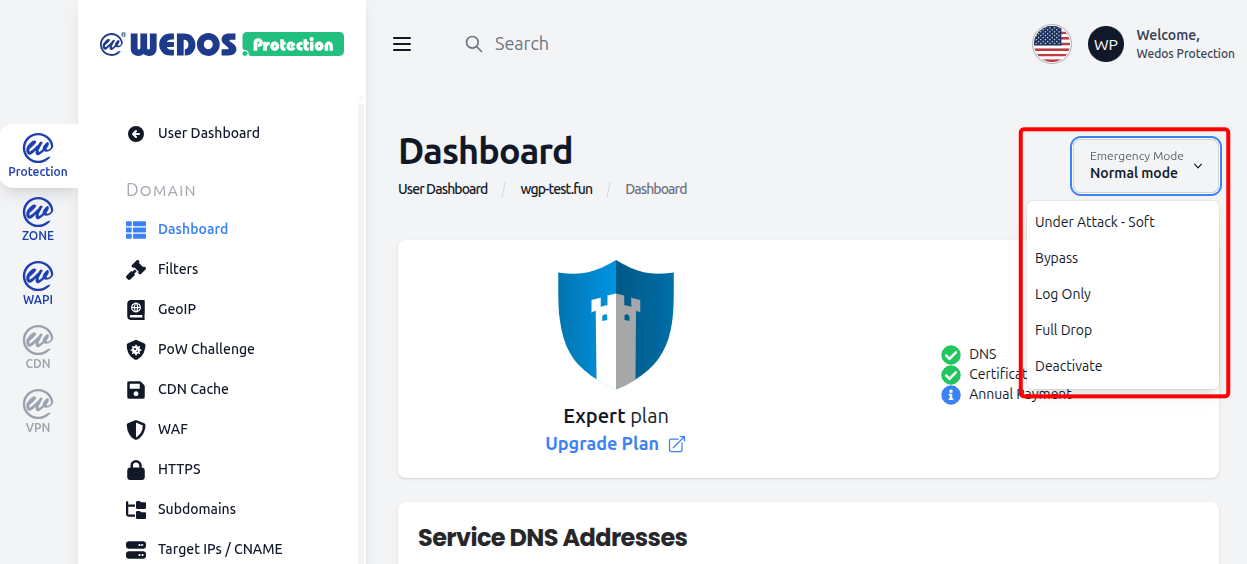
The new mode takes effect at the proxy edge within seconds.
The current active mode is always shown as the label of the dropdown.
To quickly set a certain mode for a large number of domains, create a template with that mode active.
Return to Normal Protection
To return to full production protection, select Deactivate in the dropdown and confirm the change. Deactivating the emergency mode restores all filters, rate limits, and CMS rules to their enforcing state. Any rules added or modified while the domain was in another mode are applied as soon as Normal protection is active.
Mode Manual
The list below describes the typical situation each mode is designed for. As a general rule, a domain should run in Normal mode most of the time. Use other modes deliberately for a known purpose, and return the mode to Normal once that purpose is complete.
Normal (Deactivate)
This is the production default and should be active at all times unless there is a specific reason to switch. Normal protection applies the full L3, L4, and L7 protection stack together with any custom rules you have configured.
Under Attack, Soft
Use Under Attack, Soft when the domain is the target of a focused attack but you still want to keep the service available for legitimate users. The challenge gate is hardened and rate limits are tightened, so a client that fails the challenge or exceeds the lowered thresholds is filtered out before the origin sees the request.
Bypass
Use Bypass when you suspect that a protection rule is blocking legitimate traffic and you need to quickly remove that restriction while investigating. Traffic is forwarded to the origin with reduced filtering, which keeps the site reachable while you isolate the rule causing the false positive. Once you complete the investigation and adjust Protection accordingly, return the domain to Normal.
Log Only
Use Log Only when you are getting started with WGP for the first time and want to get an overview of your traffic to determine the necessary level of protection, to evaluate Filters or WAF settings, or when you want to audit existing protection without affecting traffic. Filters and rules evaluate but do not block traffic. The resulting actions become log entries you can use to validate filter and rule needs before enabling them in Normal mode.
Full Drop
Use Full Drop as a last-resort isolation mode. All inbound TCP connections are silently dropped at the proxy edge, which means visitors see a connection timeout rather than a response of any kind. This mode is appropriate only when no other mode is sufficient, for example during a catastrophic incident where any traffic at all to the origin is unacceptable.
FAQ
How can I tell which mode is active on my domain?
The current mode is displayed in the dropdown. If it’s not Normal mode and you aren’t testing or under attack, select the Deactivate option to return to Normal mode.
Does changing Protection Mode delete or override my filters and Combo Rules?
No. Your filters and Combo Rules remain intact in the configuration. Protection Mode only changes how those rules behave at runtime. Returning to Normal protection restores full enforcement of every rule exactly as it was configured.
How quickly does a mode change take effect?
Once the confirmation dialog is accepted, the new mode is propagated to the proxy edge within seconds. There is no DNS change or restart required.
Can I switch directly from one mode to another without returning to Normal first?
Yes. You can move directly between any two modes. Each transition still requires confirmation. For example, you can move from Under Attack, Soft to Full Drop if an incident escalates, then back to Deactivate once it ends.
Should I leave Under Attack, Soft active permanently for extra security?
No. Under Attack, Soft is designed for active incidents and uses tighter thresholds and a hardened challenge gate that can affect legitimate users over time. The recommended baseline for production is Deactivate, which already runs the full WGP protection stack. Use Under Attack, Soft only when you have evidence of a focused attack.
If I activate Full Drop, will visitors see a WEDOS Protection error page?
No. Full Drop silently discards all inbound TCP connections at the proxy edge, so no HTTP response is generated. Visitors will see a connection timeout or connection reset in their browser, not a WEDOS Protection page. This is intentional and is part of why Full Drop is reserved as a last-resort mode.