
This article deals with the Filters and GeoIP features of WEDOS Protection. For Web Application Firewall settings see WAF and Combo Rules.
In this article, you will learn:
WEDOS Protection Features
To protect your web, WEDOS Protection proxy servers use the following features:
- Filters: Using filters, the system blocks a wide range of threat types. You can also filter traffic directed to specific URLs on your domain. To learn more, check out Filters.
- GeoIP: This feature expands filters, enabling you to allow or block incoming requests from IP addresses by country. To learn more, check out GeoIP.
These features are in AI mode by default. This means that any event recognized as a threat automatically informs the entire system’s decisions on how to handle it. Users with the Expert subscription plan and above can enable Custom settings in addition to AI Mode.
Security feature AI Mode cannot be disabled.
Protection Feature Setup
To access the feature settings, follow these steps:
- Log into the WEDOS Global Admin panel ⧉.
- Select a domain or template to set up.
- In the left menu, select the feature to set up.
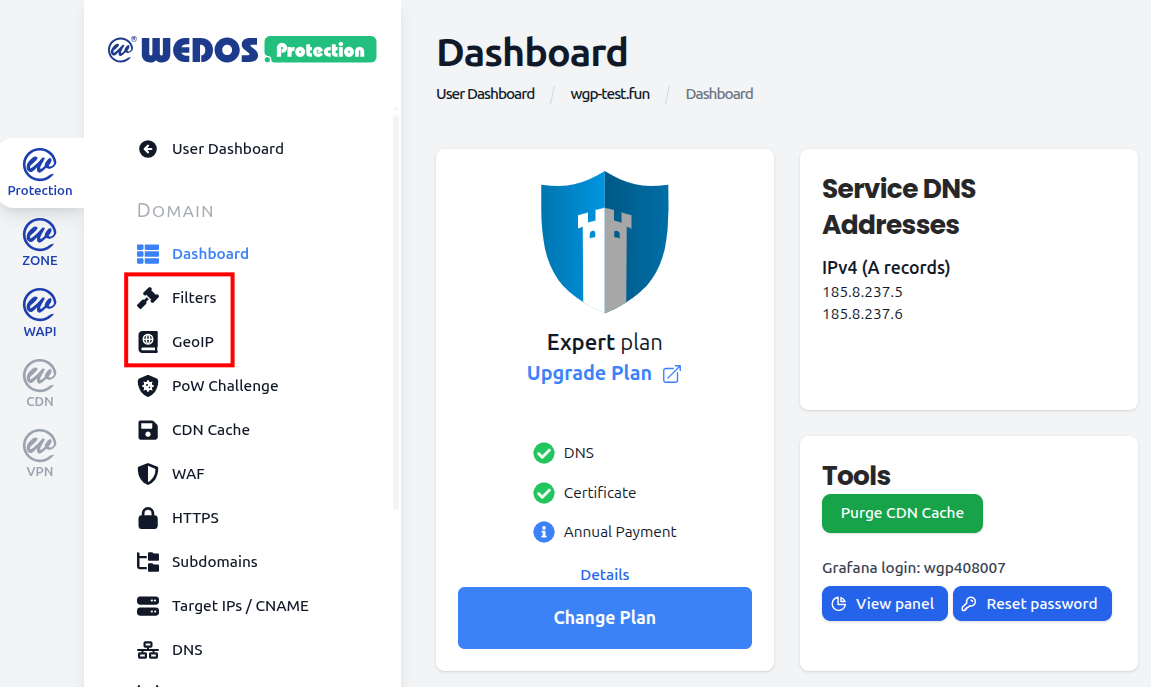
Filters
WEDOS Protection currently uses the following filters:
- IP Filter: Traffic coming from IP addresses or ranges listed here are blocked by the proxy and do not reach your web server. This filter is especially helpful if an attack is coming from a single IP address or small subnet.
- ASN Filter: In addition to IP addresses, you can also block traffic from selected Autonomous System Numbers. An Autonomous System (AS) is a group of one or more IP prefixes run by one or more network operators that maintains a single, clearly defined routing policy. The network operators must have an ASN to control routing within their networks and to exchange routing information with other ISPs.
- User Agent Filter: A user agent identifies the type of application, operating system or other entity requesting access to your web server. They typically identify themselves with the
User-Agentheader. Attackers may fake this header to announce themselves as a different client (agent spoofing). - URL Filter: This filter sets up protected URLs on your domain, blocking any incoming traffic to the filtered addresses. In this regard, it works differently from the filters above.
- JA4 TLS Fingerprint Filter: A JA4 fingerprint is created at the TLS-termination layer and allows classification of the client stack and not just the header. By capturing and hashing these characteristics in a consistent way, you get a stable fingerprint that’s tied to the client’s technology stack (TLS library, OS, runtime), not its self-declared identity. This filter is especially helpful for avoiding false positives.
- JA4H HTTP Fingerprint Filter: This is the same as JA4 but based on a client’s HTTP request. This filter is especially helpful for catching bots that match a browser at the TLS level but expose themselves at the HTTP layer.
- Referer Filter: The Referer HTTP header indicates the page or domain that linked to the current request. Useful for blocking referral spam, content scrapers, or traffic originating from known malicious or unwanted domains. Commonly used to prevent hotlinking (other sites embedding your images, videos, or assets directly) and to stop fake referrer traffic used to pollute analytics.
- Content-Type Filter: The Content-Type HTTP header declares the format of the request body (e.g.
application/json,multipart/form-data,application/x-www-form-urlencoded,text/xml). Useful for restricting your application or API to only the payload types it expects — for example, blocking file uploads on endpoints that should only receive JSON, rejecting XML/SOAP on JSON-only APIs, or stopping malformed and unusual content types commonly produced by automated tools and exploit scanners. - IP Category Filter: Filters traffic based on the type of network the source IP belongs to, rather than the IP address itself. WGP classifies each client IP into categories such as datacenter / hosting provider, residential ISP, mobile carrier, TOR / VPN / anonymising proxy, search engine crawler, and similar groups. This lets you apply broad, intent-based rules without having to maintain individual IP lists — for example, allowing residential and verified search-engine traffic, challenging datacenter traffic, and dropping TOR/VPN traffic outright.
- GeoIP filter: Since most IP addresses also carry the information on which country they are allocated to, you can quickly filter for an entire country. Because of its extensive setup, the GeoIP filter has its own section.
When accessed from a browser, blocked devices display an Access Denied error page. Otherwise, the blocked content returns a 456 error.
For the Start and Advanced subsription plans, all filters are AI Mode only. To add your own IPs, ASN, User Agents and protected URLs, upgrade to the Expert plan. This will allow you to allow, block, or require proof of work for the filter items you set.
GeoIP
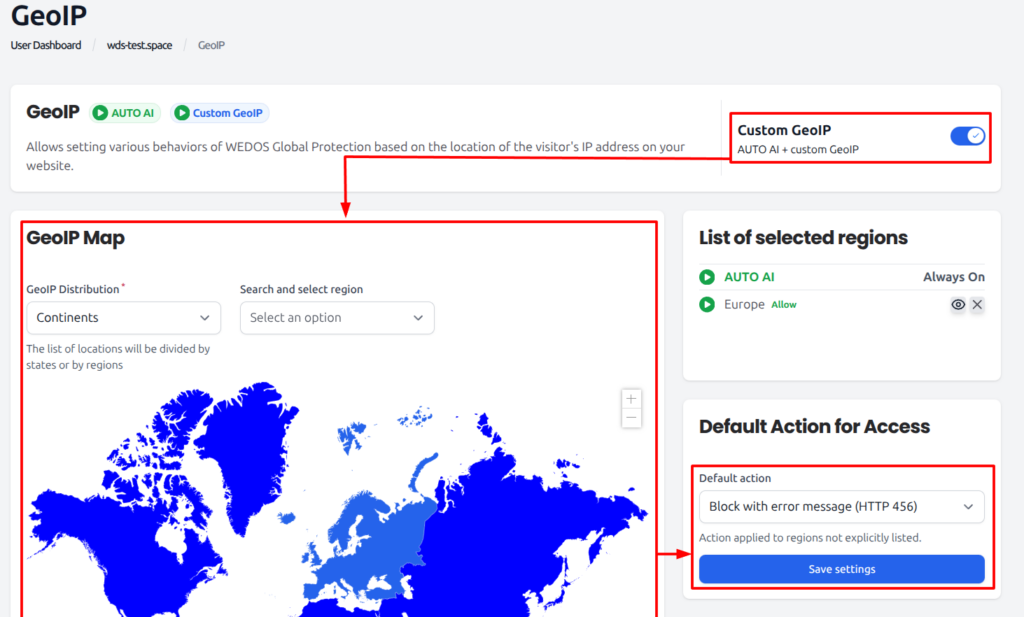
GeoIP is a type of filter which allows you to set up specific rules for specific countries, as chosen on a map. In addition to access (allow or block traffic), the GeoIP filter can also manage where to deploy Proof of Work as a protective measure.
For the Start and Advanced subsription plans, GeoIP is AI Mode only. To unlock the management interface (map), upgrade to the Expert plan.
To set up custom GeoIP rules, navigate to a Domain’s GeoIP interface and follow these steps:
- Enable Custom GeoIP.
- Select a region (continent or country) using the dropdown or map.
- Select one of the following actions for that region and click Submit:
- Allow access / Whitelist: No GeoIP-based block.
- CAPTCHA verification (Proof of Work): Require visitors to complete a challenge (Proof of Work, such as CAPTCHA).
- Block with Error Message (HTTP 456): Always block traffic, but display customizable error message.
- Block silently: Block traffic, return only error code.
- Select default action for all other regions.
- Click the Save settings button and Confirm.
FAQ
How do I turn off AUTO AI on Protection features?
AUTO AI is always enabled. You can add your own rules in custom mode, but the AI cannot be disabled.